Aspect Ratio Converter
Enter a size, pick the target ratio and a method. You get the new size and how many pixels are cut or added on each side.
This aspect ratio converter changes a width and height to a new aspect ratio, such as 1:1, 4:5, 4:3, 3:2, 16:9, 9:16 or a custom ratio, by cropping, padding or stretching. For each method it shows the new size in pixels, how many pixels are cut or added, and what that costs.
Enter a source resolution and the tool works as a resolution aspect ratio calculator: it states the source ratio, then converts it. A table compares the three methods side by side. It runs in your browser, it is free, and nothing you type is uploaded. It works with numbers, not image files, and “pixel” here means the picture’s size in pixels, not the shape of each pixel.
How to use the aspect ratio converter
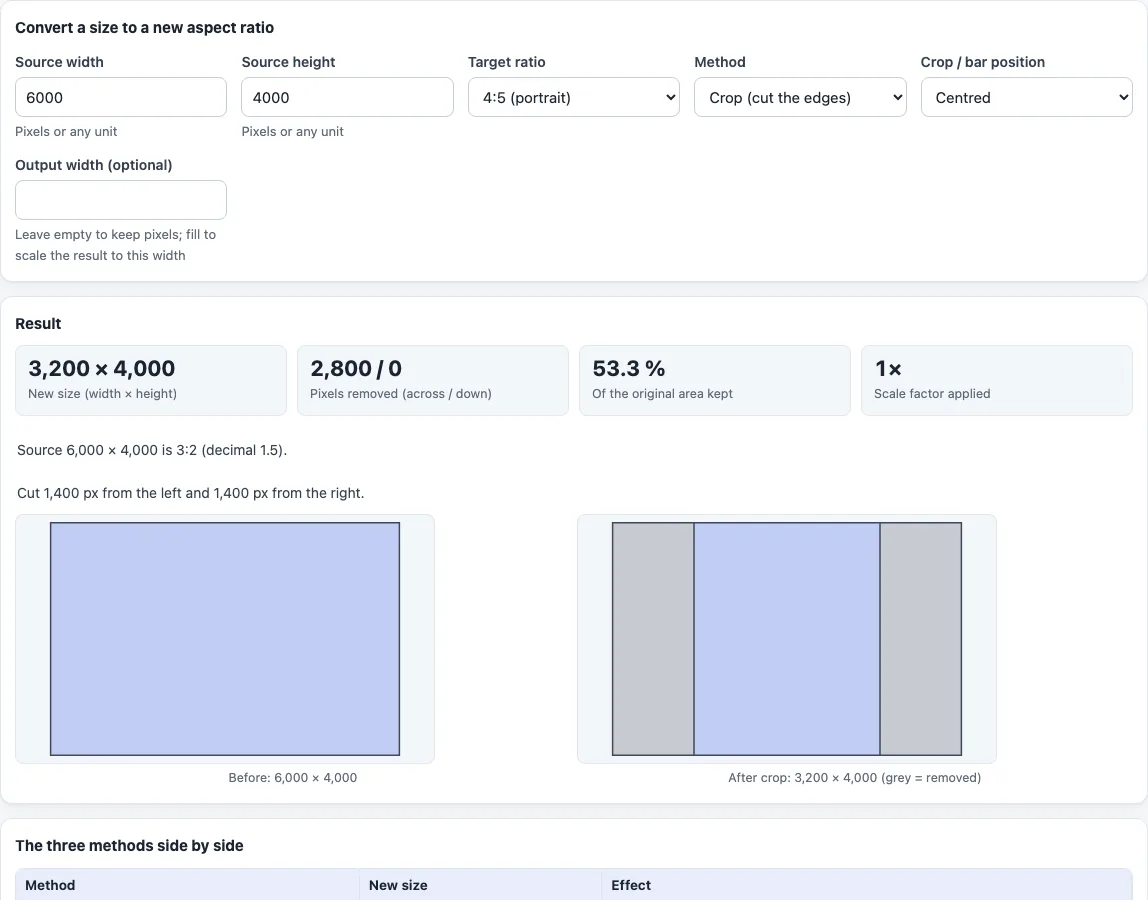
- Under “Convert a size to a new aspect ratio”, enter “Source width” and “Source height”. The result line states the source ratio and its decimal value, for example 6000 × 4000 is 3:2 (decimal 1.5).
- Pick a “Target ratio”: 1:1 (square), 4:5 (portrait), 4:3, 3:2, 16:9, 9:16 (vertical), 2:1, 2.39:1 (widescreen) or “Custom ratio”. With a custom ratio, a “Custom ratio” box appears for entries such as 5:7, 1.91:1 or 1.5.
- Pick a “Method”: “Crop (cut the edges)”, “Pad (add bars)” or “Stretch (distorts)”.
- Pick “Crop / bar position”: “Centred”, “Top / left edge” or “Bottom / right edge”. It splits the cut or the bars between the two sides.
- Optionally enter an “Output width (optional)”. Leave it empty to keep pixels as they are, or fill it to scale the result to that width. “Scale factor applied” shows the multiplier.
- Read the result. Crop shows “Pixels removed (across / down)” and “Of the original area kept”. Pad shows “Pixels added (across / down)” and “Of the canvas is picture”. Stretch shows “Vertical distortion” and “Horizontal × vertical scale”.
- Under “The three methods side by side”, compare the new size and the effect of each method for the same target.
- Check the drawings under the result: “Before” shows the source, and “After” shows the converted frame, with grey marking what is removed or what the bars are.
What does an aspect ratio mean?
An aspect ratio is a picture’s width compared with its height. To get it from pixels, divide the width by the height: 1920 ÷ 1080 is about 1.78, the shape of 16:9, and 6000 ÷ 4000 is 1.5, which is 3:2.
How does the tool convert a resolution to a new ratio?
Each method reaches the target in a different way, and each has a cost.
- Crop keeps the scale at 1 and removes the excess. It finds the largest rectangle of the target ratio inside the source.
- Pad keeps every source pixel and adds bars. It finds the smallest rectangle of the target ratio that contains the source.
- Stretch keeps the width and rescales the height only, so everything looks taller or shorter.
What happens when you crop to a new ratio?
A 6000 × 4000 picture cropped to 4:5 becomes 3200 × 4000. The tool shows 2,800 / 0 pixels removed across and down, and notes 1,400 px cut from each side. 53.3 % of the original area is kept. Cropped to 1:1 it becomes 4000 × 4000, with 1,000 px cut from each side and 66.7 % kept.
What happens when you pad to a new ratio?
A 1920 × 1080 picture padded to 1:1 becomes 1920 × 1920. The tool adds 420 px on the top and 420 px on the bottom, so the picture fills 56.25 % of the canvas.
What happens when you stretch to a new ratio?
The new height is the width divided by the target ratio. A 1920 × 1080 picture stretched to 4:3 becomes 1920 × 1440. Vertical distortion is new height ÷ old height − 1, so 1440 ÷ 1080 − 1 gives +33.3 %.
What does the side-by-side table show?
It runs all three methods for the same target and states the effect of each. For 6000 × 4000 to 4:5, crop gives 3200 × 4000 and “46.7 % of the picture is cut away”. Pad gives 6000 × 7500, with 1,750 px added on the top and 1,750 px on the bottom, so “46.7 % of the canvas is empty bars”. Stretch gives 6000 × 7500 and is “Distorted +87.5 % vertically”. Choosing between them is a trade-off you make with those numbers.
What if the result is not an exact ratio?
Sizes are whole pixels. When a source size cannot hit the target exactly, the page says the result differs from the target ratio by a fraction of a pixel.
Frequently asked questions
Is the aspect ratio converter free, and is anything uploaded?
It is free, runs in your browser and needs no sign-up. Nothing you type is uploaded.
Is this an online aspect ratio converter for image files?
It converts numbers, not files. You type a size and read the new size, then make the change in your own editor. It never opens or alters a picture.
Which method should I choose?
That depends on what you can give up. Crop loses edges, pad adds empty bars, and stretch distorts the picture. The comparison table shows the numbers for all three, so you can decide.
Can I convert to a 16:9 aspect ratio?
Yes. Choose 16:9 as the “Target ratio”. For a page built only around 16:9, with width and height solved for any size, see the 16:9 aspect ratio calculator.
Can I use a ratio that is not in the list?
Yes. Choose “Custom ratio” and type it, for example 5:7, 1.91:1 or 1.5.
What is the difference between aspect ratio and pixel aspect ratio?
The aspect ratio describes the shape of the whole picture. The pixel aspect ratio describes the shape of one pixel. This tool converts the whole picture; the pixel aspect ratio calculator handles the pixel shape.
Related tools
- Aspect ratio calculator: Find the ratio of a size you already have.
- 16:9 aspect ratio calculator: Get the matching side at 16:9 and see standard 16:9 sizes.
- Image resizing calculator: Scale a size up or down without changing its ratio.
- Screen aspect ratio calculator: Find the ratio and physical size of a display.
- Pixel aspect ratio calculator: Convert between pixel shape and display ratio.
- Golden ratio calculator splits a length and crops a photo to 1.618 : 1.