Image Resizing Calculator
Work out the new pixel size of a picture from a width, a height, a percentage, or a box it has to fit or fill. Nothing is uploaded.
This image resizing calculator works out the new width and height of a picture when you resize it and keep its aspect ratio. Enter the original size, choose how to resize (a new width, a new height, a percentage, or a box to fit inside or to cover) and it returns the new size in pixels, the megapixels and the share of the original area.
It works as an image size calculator for ratio-safe resizing: both sides always change by the same scale factor, so the proportions stay the same, which also makes it a picture size ratio calculator. It runs in your browser, it is free, and nothing you type is uploaded. It does not open or resample your image, so you apply the numbers in your own editor.
How to use the image resizing calculator
- Under “Resize keeping the aspect ratio”, enter “Original width” and “Original height” in pixels. The page shows the original ratio and megapixels.
- Choose “Resize by”: “New width”, “New height”, “Percentage (scale)”, “Fit inside a box” or “Cover a box (then crop)”.
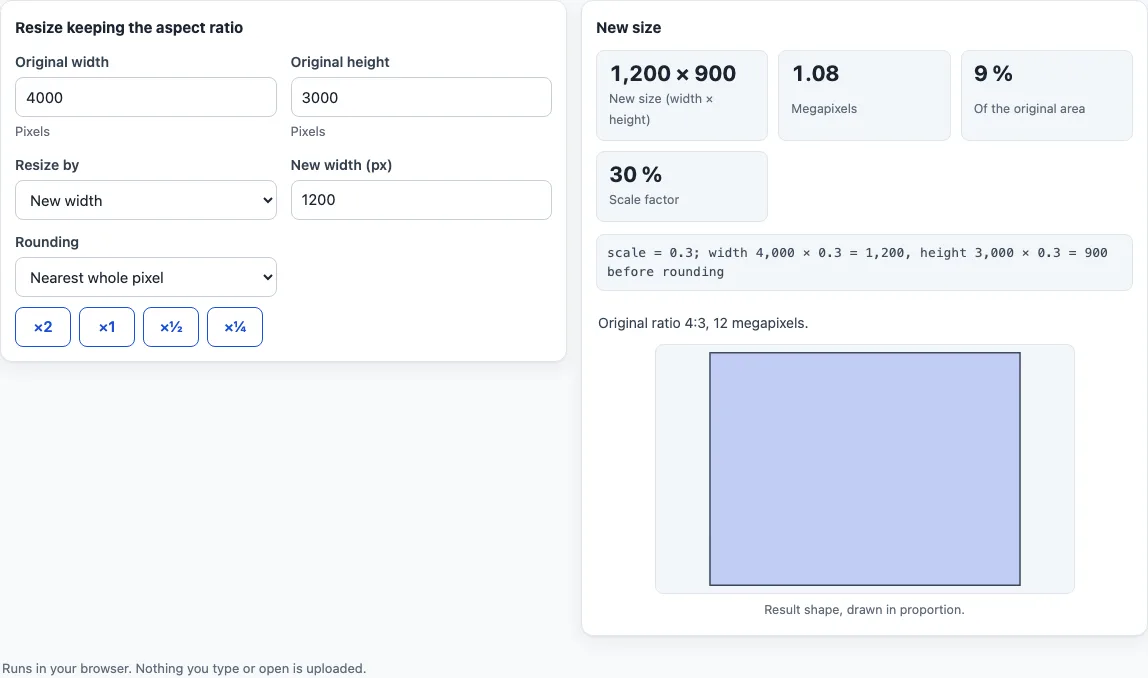
- Enter the value. For “New width” or “New height” the box is labelled by that name. For 4000 × 3000, a new width of 1200 gives 1200 × 900.
- For a percentage, type it in “Scale (%)”, or press a button under “Quick scale”: ×2, ×1, ×½ or ×¼. The buttons switch the mode to percentage for you.
- For a box, enter “Box width (px)” and “Box height”. “Fit inside a box” keeps the whole picture within the box. “Cover a box (then crop)” fills the box, and the page says how many pixels to crop across and down.
- Choose “Rounding”: “Nearest whole pixel”, “Round down” or “Nearest even number”. The smallest result is 2 px when you pick even.
- Read “New size (width × height)”, “Megapixels”, “Of the original area” and “Scale factor”. The working line shows the scale and the values before rounding.
In “New width” and “New height” modes, the side you typed stays exact and only the other side is rounded. A drawing of the result sits under the numbers, with a dashed outline for the box in the two box modes.
How do you resize an image and keep the ratio?
Multiply both sides by one scale factor s. The new width is W × s and the new height is H × s, so the shape does not change.
How is the scale factor worked out?
It depends on the mode. From a new width a, s = a ÷ W. From a new height, s = a ÷ H. From a percentage, s = a ÷ 100, so 50 % gives 0.5.
How do “fit inside” and “cover” work?
For a box of a × b, “Fit inside a box” uses s = min(a ÷ W, b ÷ H), so the whole picture fits and one direction has spare room. “Cover a box (then crop)” uses s = max(a ÷ W, b ÷ H), so the picture fills the box and the excess is cropped.
For a 4000 × 3000 picture and a 1920 × 1080 box, fitting inside gives 1440 × 1080. Covering gives 1920 × 1440, and the page says to crop 360 px down.
What does a new height do?
It works the same way from the other side. For a 4000 × 3000 picture, a new height of 1000 gives a scale factor of 0.3333, and the exact width is 1333.333. The height stays at 1000, the width rounds to 1333, and the page notes the shift. The “Quick scale” buttons are fixed percentages: ×2 on 4000 × 3000 gives 8000 × 6000, and ×½ gives 2000 × 1500.
Why does rounding change the new size?
Scaling can leave a fraction of a pixel, and “Rounding” decides what happens to it. For 50 % of 1999 × 1333 the exact size is 999.5 × 666.5. “Nearest whole pixel” gives 1000 × 667, “Round down” gives 999 × 666, and “Nearest even number” gives 1000 × 666. When rounding applies, the page notes that the ratio shifts by a fraction of a pixel.
How are megapixels and area percentage worked out?
Megapixels are width × height ÷ 1,000,000, one megapixel being one million pixels, the usual camera convention. A 4000 × 3000 picture is 12 MP, and the 1200 × 900 result is 1.08 MP. “Of the original area” is the new area divided by the old, so 1200 × 900 is 9 % of the original.
Frequently asked questions
Is the image resizing calculator free, and is anything uploaded?
It is free, runs in your browser and needs no sign-up. Nothing you type is uploaded.
Does it resize my image file?
No. It only calculates numbers. It does not open, resample or save a picture, so you apply the new size in your own editor.
What is the difference between “Fit inside a box” and “Cover a box”?
Fit inside keeps the whole picture within the box and leaves one direction partly empty. Cover fills the box completely and tells you how many pixels would be cropped.
Does it tell me file size, quality or DPI?
No. It gives the new width and height, the megapixels, the share of the original area and the scale factor.
Why is my result one pixel different from what I expected?
When the scaled size is not a whole number, “Rounding” decides the result. Try “Nearest whole pixel”, “Round down” or “Nearest even number” to see which one matches.
How do I double or halve an image size?
Press ×2 or ×½ under “Quick scale”. That sets the mode to percentage with 200 or 50, and the new size follows.
Can I find a picture’s size by ratio?
Yes. Enter the original size, choose “New width” or “New height”, and the other side follows at the same ratio.
Related tools
- Aspect ratio calculator: Find the ratio of the original size, or solve a missing side.
- Aspect ratio converter: Change a size to a different ratio by cropping, padding or stretching.
- 16:9 aspect ratio calculator: Get exact 16:9 sizes and fit a frame to 16:9.
- Screen aspect ratio calculator: Check a display’s ratio and pixel density.
- Pixel aspect ratio calculator: Work with the shape of pixels in video frames.
- Golden ratio calculator splits a length and crops a photo to 1.618 : 1.