Pixel Ratio Calculator (Pixel Aspect Ratio)
Convert pixels to a ratio, find the display aspect ratio from a storage size and PAR, or find the PAR a target ratio needs.
This pixel ratio calculator turns pixel dimensions into a ratio, and it also works with the pixel aspect ratio (PAR), the shape of one pixel. It finds the display aspect ratio (DAR) from a frame size and a PAR, or the PAR needed to show a frame at a DAR you choose.
It works as a pixel to ratio calculator and a px to aspect ratio tool: type 1920 and 1080 and you get 16:9. For video with non-square pixels, such as 720 × 480 or 1440 × 1080, the other two sections give the display shape and the pixel shape. It runs in your browser, it is free, and nothing you type is uploaded.
How to use the pixel aspect ratio calculator
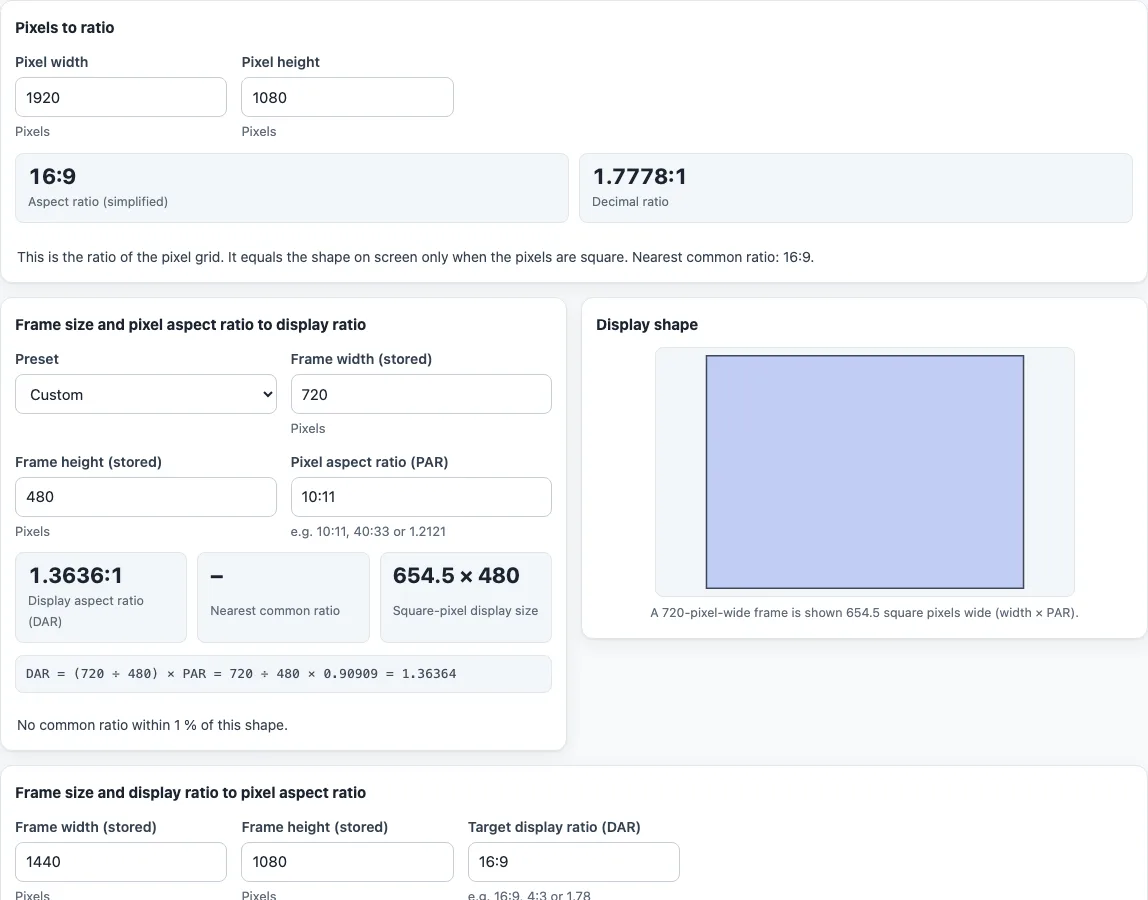
- For a plain pixel dimension, use “Pixels to ratio”. Enter “Pixel width” and “Pixel height” and read “Aspect ratio (simplified)” and “Decimal ratio”. The note says the result matches the on-screen shape only when pixels are square.
- To find the display shape, use “Frame size and pixel aspect ratio to display ratio”. Pick a “Preset” under “Common formats”, or leave it on “Custom” and enter “Frame width (stored)” and “Frame height (stored)”.
- Enter the “Pixel aspect ratio (PAR)” as 10:11, 40:33 or a decimal such as 1.2121.
- Read “Display aspect ratio (DAR)”, “Nearest common ratio” and “Square-pixel display size”. The working line shows DAR = (W ÷ H) × PAR, and the drawing shows the displayed shape.
- To find a PAR, use “Frame size and display ratio to pixel aspect ratio”. Enter “Frame width (stored)”, “Frame height (stored)” and “Target display ratio (DAR)”, for example 16:9.
- Read “Pixel aspect ratio (decimal)” and “Pixel aspect ratio (fraction)”. A PAR above 1 means pixels wider than tall, and below 1 means taller than wide.
- The “Pixel aspect ratios of common video formats” table lists each preset’s stored frame, PAR, PAR as a decimal and display ratio. The three sections are independent, so you can use one without the others.
The presets are NTSC 4:3 and 16:9 at 704 × 480 (PAR 10:11 and 40:33), PAL 4:3 and 16:9 at 704 × 576 (12:11 and 16:11) and at 720 × 576 (16:15 and 64:45), HDV 1440 × 1080 (4:3), square pixels, and anamorphic 2:1 pixels.
How do the presets work?
Picking a “Preset” fills in the stored frame size and the PAR in one step. Editing any field afterwards switches the preset back to “Custom”. The “Anamorphic 2:1 pixels” preset uses a 1920 × 1080 frame with a PAR of 2:1, which displays at 3.5556:1.
What is a pixel aspect ratio?
It is the width of one pixel compared with its height. Square pixels are 1:1. A PAR of 2:1 means each pixel is twice as wide as it is tall. When pixels are not square, the stored frame does not show at its true shape until the PAR is applied.
How do you get the display ratio from PAR?
The relation is DAR = (storage width ÷ storage height) × PAR, so SAR × PAR = DAR, where SAR is the stored width divided by the stored height. A 720 × 480 frame has a SAR of 1.5. With a PAR of 10:11 it displays at 1.3636:1, equal to 654.5 × 480 square pixels. With 40:33 it displays at 1.818:1, or 872.7 × 480.
Neither of those is within 1 % of a common ratio, so “Nearest common ratio” shows a dash. Switch to a 704-wide frame and 704 × 480 with 10:11 gives exactly 640 × 480, which is 4:3.
How do you get PAR from the display ratio?
Divide DAR by SAR: PAR = DAR ÷ SAR. For 1440 × 1080 and a target of 16:9, the PAR is 4:3, since 1440 × 4/3 is 1920 × 1080. For 720 × 576 and 4:3 the PAR is 16:15, and for 704 × 576 and 16:9 it is 16:11.
Where do the preset values come from?
They are the values listed on the Wikipedia page for pixel aspect ratio. Square pixels (1:1) and anamorphic 2:1 pixels are definitions, and the reference table says to check which PAR your editing product uses.
Why do PAL and NTSC frames use non-square pixels?
ITU-R BT.601 specifies 720 samples per line. A 4:3 picture fits in 704 pixels, with 8 pixels at each edge as margin. Editing products used 12:11 and 16:11 so that PAL images are exactly 704 wide. A 720-wide frame with 12:11 does not give exactly 4:3, and the tool notes when a result is off a common ratio. Which PAR your software uses, 704 or 720 wide, depends on the editing product, so check its documentation.
Frequently asked questions
Is the pixel ratio calculator free, and is anything uploaded?
It is free, runs in your browser and needs no sign-up. Nothing you type is uploaded.
What is the difference between PAR and DAR?
PAR is the shape of one pixel. DAR is the shape of the whole picture as displayed. The tool links them with DAR = (W ÷ H) × PAR.
How do I convert pixels to a ratio?
Use “Pixels to ratio”: enter the width and height and read the simplified ratio. It equals the on-screen shape only for square pixels.
Why is “Nearest common ratio” empty?
The tool names a common ratio only if the display shape is within 1 % of one. A 720 × 480 frame with 10:11 is not, because 720-wide frames do not give an exact 4:3 or 16:9 with 10:11, 40:33, 12:11 or 16:11.
What is SAR?
SAR is the storage aspect ratio: the stored width divided by the stored height, ignoring the shape of the pixels. For 720 × 480 it is 1.5. DAR is SAR multiplied by PAR.
Why is the square-pixel width 654.5 and not 720?
With a PAR of 10:11 each pixel is narrower than it is tall, so a 720-pixel-wide line takes up 720 × 10 ÷ 11 = 654.5 square pixels of width. The drawing and its caption show that displayed shape.
Can I enter the PAR as a decimal?
Yes. The PAR box accepts a ratio such as 10:11 or 40:33, or a decimal such as 1.2121. The target display ratio box accepts 16:9, 4:3 or a decimal such as 1.78.
Which preset should I use for PAL video?
Pick the one whose display ratio matches your footage: PAL 4:3 or PAL 16:9, at 704 or 720 wide. Check which width your editing software uses.
Related tools
- Aspect ratio calculator: Find the ratio of any width and height when pixels are square.
- 16:9 aspect ratio calculator: Get exact 16:9 sizes in pixels.
- Aspect ratio converter: Convert a picture size to another ratio by cropping, padding or stretching.
- Image resizing calculator: Scale a size while keeping its proportions.
- Screen aspect ratio calculator: Find a display’s ratio, physical size and PPI.